
- Phones
- iPhone
Useful modes and handy automations
When you purchase through links on our site, we may earn an affiliate commission. Here’s how it works.
 The iPhone 16 Pro Max
(Image credit: Future / Lance Ulanoff)
Jump to:
The iPhone 16 Pro Max
(Image credit: Future / Lance Ulanoff)
Jump to:
- Use Shortcuts
- Turn off the always-on display
- Use Adaptive Power mode
- Use dark mode
- Use Low Power mode
- Copy link
- X
- Threads
Sign up for breaking news, reviews, opinion, top tech deals, and more.
Contact me with news and offers from other Future brands Receive email from us on behalf of our trusted partners or sponsors By submitting your information you agree to the Terms & Conditions and Privacy Policy and are aged 16 or over.You are now subscribed
Your newsletter sign-up was successful
An account already exists for this email address, please log in. Subscribe to our newsletterWhile smartphone battery life has somewhat got better over the years, it has improved a lot more slowly than most other elements of phones. So if you’re anything like me you’ll still be looking for ways to maximize the life of your device.
Over on Android, we’re starting to see promising silicon-carbon batteries that pack higher capacities into the same space, but Apple hasn’t embraced this tech yet. So for now, I’m having to make use of the many tools the company gives you to keep its lower capacity batteries going for longer.
Below then, I’ve detailed what I personally do to optimize my iPhone’s battery life – this then isn’t a comprehensive guide to improving your phone’s battery. Rather, it’s the trade-offs and tools that work best for me.
You may like-
 Still having iOS 26 battery life problems? Try these 5 fixes to improve it
-
 5 simple display settings to improve your iPhone's battery life
-
 I’ve been using iPhones for years, and I always turn off this major iOS feature
1. It alerts me when it hits 80% charge
Consistently charging your iPhone’s battery to 100% can cause it to wear out faster than if you keep it between roughly 20% - 80%, so it’s something that I try not to do when I don’t need to.
I’ll happily charge to 100% when I know I’ll be out all day, but otherwise, I try and limit the charge to 80%, and there are various ways you can do that.
The simplest – but most restrictive – is to head to Settings > Battery > Charging, and set a lower charging limit, though note that you need an iPhone 15 or later to do this. But since I sometimes want to charge to 100% and don’t want to have to keep adjusting settings, I don’t do that.
I also don’t enable Optimized Battery Charging – a toggle on the same screen that will cause the iPhone to charge to 80% and then wait until it thinks you’ll need it to charge the remaining 20%. This is another way to slow degradation, but I don’t charge my phone overnight or at other consistent times, so I don’t trust it to predict this accurately – and again, I don’t always want it charging to 100% anyway.
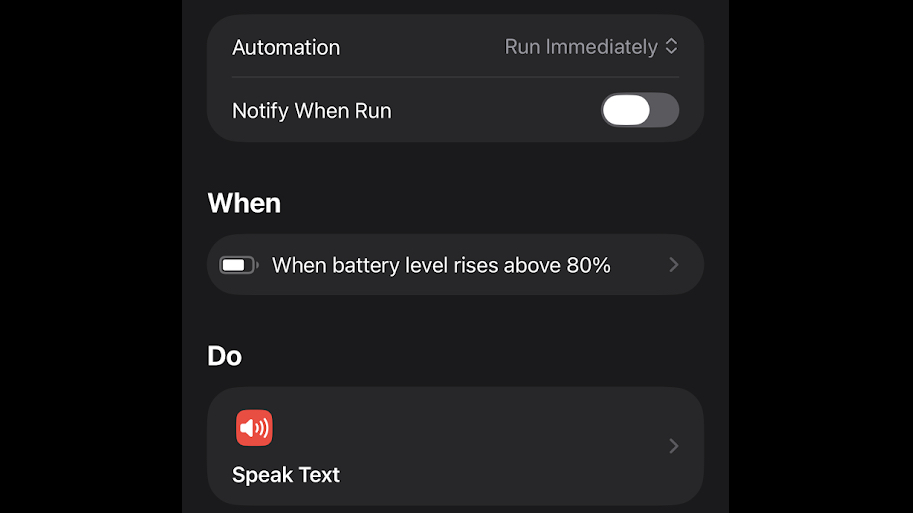
Get daily insight, inspiration and deals in your inboxContact me with news and offers from other Future brandsReceive email from us on behalf of our trusted partners or sponsorsBy submitting your information you agree to the Terms & Conditions and Privacy Policy and are aged 16 or over.Instead, what I do is simply remove it from the charger when it hits 80%, but rather than having to keep checking the battery level, I’ve used Shortcuts to make an automation that will speak out loud telling me when the battery has hit 80%.
This is easy to set up, just open the Shortcuts app, and hit the ‘+’ button. Then tap ‘Battery Level’, adjust the slider to 80%, then tap ‘Rises Above 80%’ and ‘Run Immediately’. Then tap ‘Next’, followed by ‘Speak Text’, and type the message you want spoken. If you tap the arrow by the text entry box, you can adjust the voice that will speak it. Then tap the tick symbol, and from now on when the battery exceeds 80% charge, you’ll get that alert.
2. I turn off the always-on display
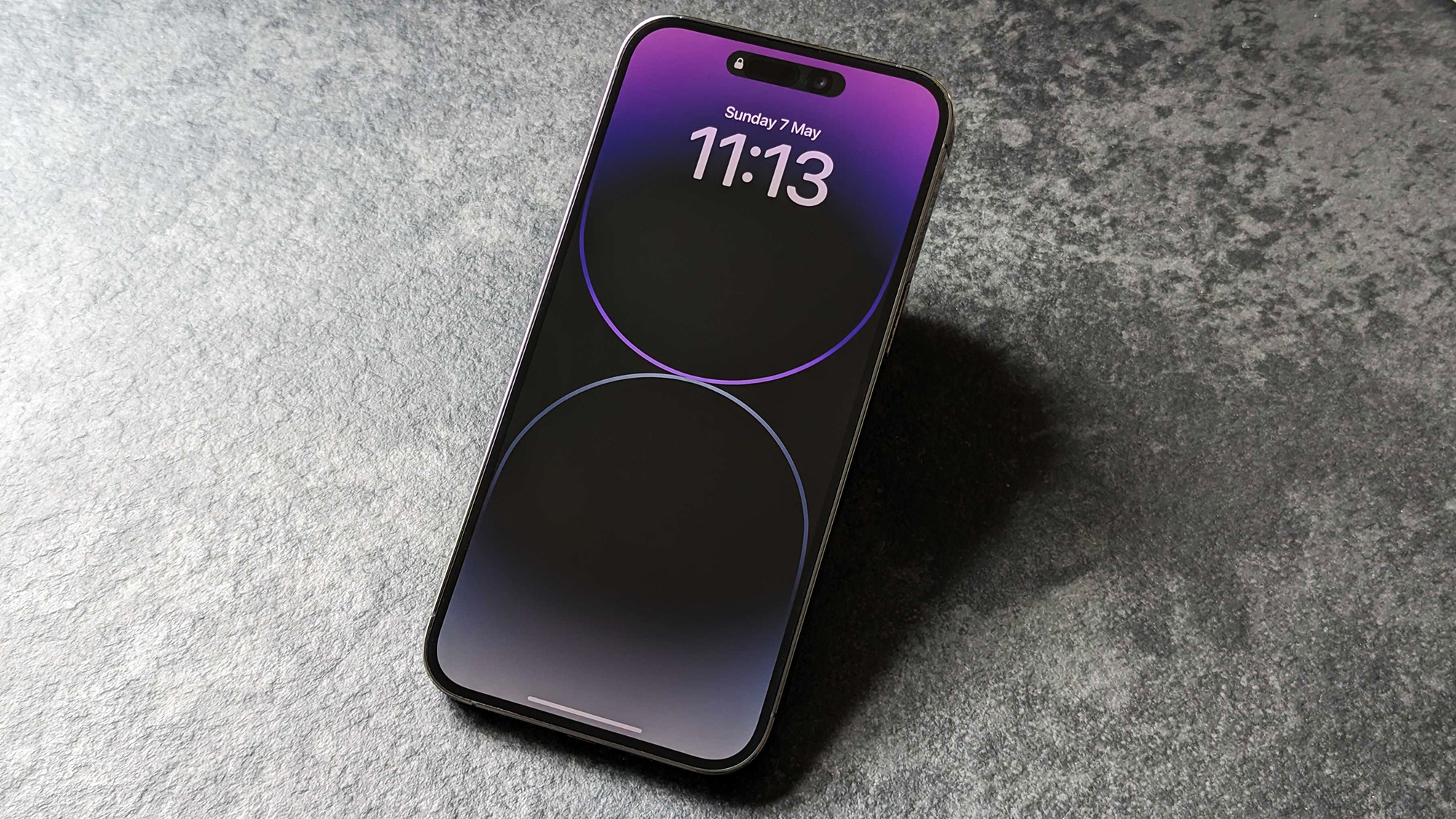
I’ve written at length before about my issues with the iPhone’s always-on display, so I won’t repeat myself too much here, but my biggest issue is that it can be a significant drain on the battery, so – as it’s not something that I’m interested in using anyway – I disable it.
You may like-
Still having iOS 26 battery life problems? Try these 5 fixes to improve it
-
5 simple display settings to improve your iPhone's battery life
-
These 7 hidden iOS features have transformed how I use my iPhone
You can do this by heading to Settings > Display & Brightness > Always On Display, and then turn the always-on display toggle off.
Of course, this is just something that I personally do – if you get much value from the always-on display then you should leave it on. There are plenty of other ways to improve your iPhone’s battery life anyway.
3. I use Adaptive Power mode
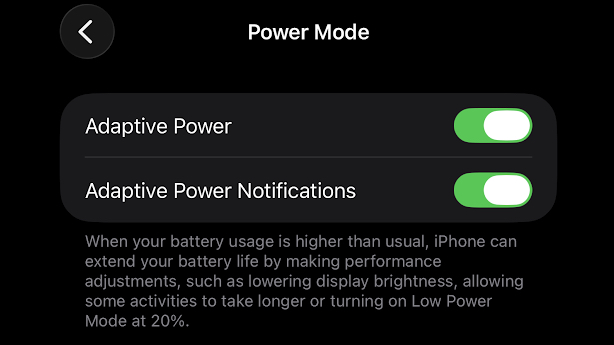
One setting that I have enabled permanently is Adaptive Power mode – though this is something that you’ll need an iPhone 15 Pro or later to have access to.
With this turned on, your phone will make performance adjustments, such as lowering the screen brightness or allowing some things to take longer, in order to extend the battery life. However, it will only do these things when your battery usage is higher than normal.
I also turn on Adaptive Power notifications, which alert you whenever Adaptive Power mode adjusts your phone’s performance, just so I know what’s going on.
Both of these toggles can be found in Settings > Battery > Power Mode.
4. I use dark mode
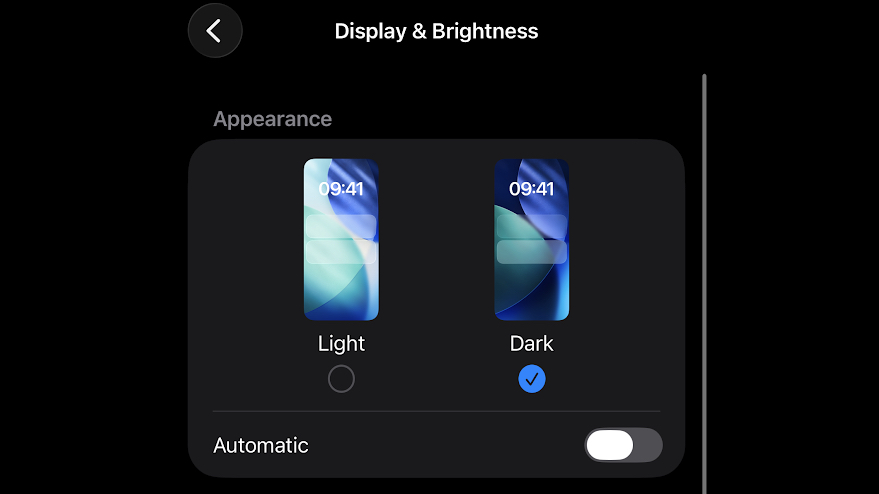
I use dark mode on almost any device that supports it – that’s in part because I just think it tends to look better, and is gentler on my eyes. But it’s also because if you’re using something battery-powered with an OLED screen – such as any recent iPhone – it should use less battery than light mode.
That’s because with an OLED screen, blacks are displayed by turning off pixels, so the more of your screen that’s black, the fewer pixels need to be lit up.
This is unlikely to have a huge impact unless you keep your phone’s screen close to maximum brightness most of the time. Yet every little helps, and since I tend to prefer dark mode anyway, it’s a no-brainer for me.
If you want to enable dark mode too, you can do so by heading to Settings > Display & Brightness, and tapping the ‘Dark’ option.
5. I switch to Low Power mode when the battery is low
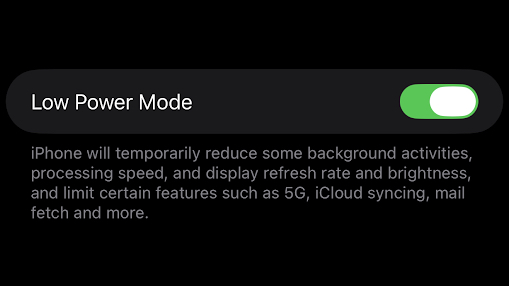
Low Power mode is what you’ll want to enable if you need your phone to last as long as possible, at all costs. Turning this on will reduce background activities, processing speed, refresh rate, and screen brightness, as well as limiting 5G, iCloud syncing, mail fetch, and more.
In other words, it makes your phone a whole lot slower and less capable, but it also makes your phone consume a whole lot less battery.
As such, I only use this when the battery level is low, or I anticipate it running out before I’ll be able to charge. But in those circumstances, it’s a very useful tool to have.
If you’re using Adaptive Power mode like I do, then Low Power mode will automatically turn on when your iPhone drops to 20% battery anyway, but there are some occasions when I want to turn it on before that point. So to do so, head to Settings > Battery > Power Mode, and tap the toggle by ‘Low Power Mode’.
Today's best iPhone deals Apple iPhone 17
 SG$1,299ViewSee all pricesApple iPhone 17 Pro SG$1,749ViewSee all pricesApple iPhone 17 Pro Max SG$1,899ViewSee all pricesApple iPhone Air SG$1,599 SG$1,298ViewSee all pricesApple iPhone 16e SG$949 SG$788.70ViewSee all pricesWe check over 250 million products every day for the best prices
Follow TechRadar on Google News and add us as a preferred source to get our expert news, reviews, and opinion in your feeds. Make sure to click the Follow button!
And of course you can also follow TechRadar on TikTok for news, reviews, unboxings in video form, and get regular updates from us on WhatsApp too.
TOPICS Apple James RogersonSocial Links NavigationJames is a freelance phones, tablets and wearables writer and sub-editor at TechRadar. He has a love for everything ‘smart’, from watches to lights, and can often be found arguing with AI assistants or drowning in the latest apps. James also contributes to 3G.co.uk, 4G.co.uk and 5G.co.uk and has written for T3, Digital Camera World, Clarity Media and others, with work on the web, in print and on TV.
View MoreYou must confirm your public display name before commenting
Please logout and then login again, you will then be prompted to enter your display name.
Logout Back To Top Read more Still having iOS 26 battery life problems? Try these 5 fixes to improve it
 5 simple display settings to improve your iPhone's battery life
These 7 hidden iOS features have transformed how I use my iPhone
5 simple display settings to improve your iPhone's battery life
These 7 hidden iOS features have transformed how I use my iPhone
 Forget cameras, AI, and chip upgrades – you really want better phone battery life
 5 things that annoy me about iPhones
 Does closing apps save your phone’s battery life? Here's what experts say
Latest in iPhone
Does closing apps save your phone’s battery life? Here's what experts say
Latest in iPhone
 MagSafe and more: how likely are these iPhone 17e rumors?
 Huge iPhone Fold leak teases some big differences to the Galaxy Z Fold 7
 Four months with the iPhone 17 Pro has changed the way I use my phone – for better or worse
 How the heck did phones become so boring? Looking at you, Apple and Samsung — but at least there’s hope on the horizon
 This impressive camera accessory brings 10x zoom to your iPhone
5 of the most important iPhone apps to install first
Latest in Features
This impressive camera accessory brings 10x zoom to your iPhone
5 of the most important iPhone apps to install first
Latest in Features
 "The height of nonsense": Oracle co-founder Larry Ellison’s 1987 argument that not everything should be AI makes perfect sense in 2026
 Seeing BAFTA-winning game music live was an experience I think any gaming fan would love
 Here are my 4 top TVs that should be getting a big discount soon
 'With RPGs, it's all about offering players things that they only get to experience in the game' — Sea of Remnants creative director outlines vision behind upcoming free-to-play pirate epic
 I ditched Windows 11 for Windows XP for a week – here’s what happened
 What is a dedicated IP and how do I get one?
LATEST ARTICLES
What is a dedicated IP and how do I get one?
LATEST ARTICLES- 1Here’s how I optimize my iPhone’s battery life to make it last longer
- 2Spotify just got a neat upgrade to give you the stories behind the songs – but it looks like YouTube Music is removing a key feature from free accounts
- 3Liverpool vs Man City Live Streams: How to watch Premier League 2025-26 from anywhere
- 4"The height of nonsense": Oracle co-founder Larry Ellison’s 1987 argument that not everything should be AI makes perfect sense in 2026
- 5Heated Rivalry season 2: everything we know so far about the hit HBO Max show’s return